
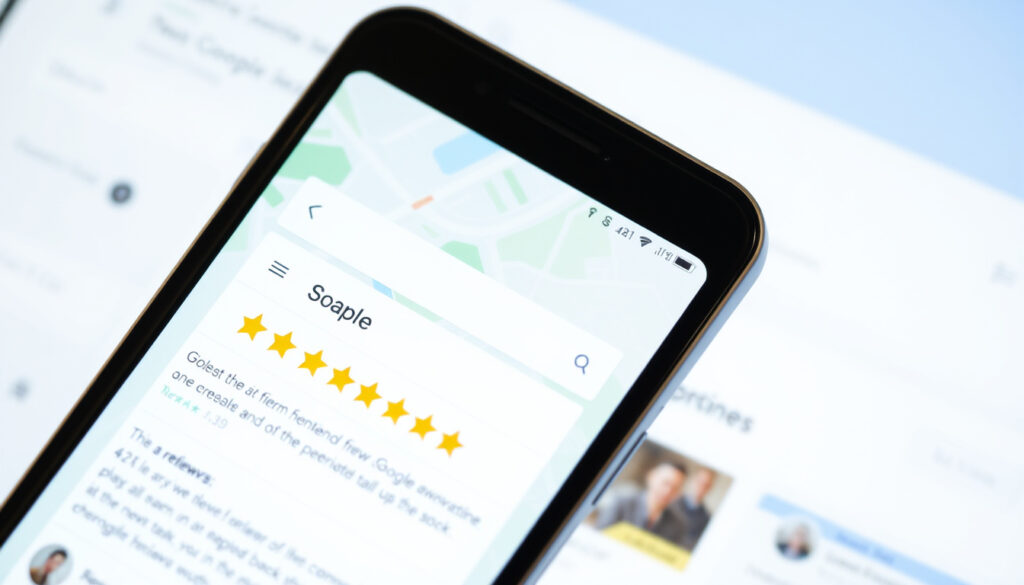
Ever tried to find a specific person’s Google review and hit a wall? Google’s review system is built around businesses, not people, so searching by name isn’t as straightforward as you’d hope. This guide walks through the workarounds that actually work, from browser find tricks to third-party tools, and explains why Google makes it so hard.
Total Google Maps reviews worldwide: Over 1 billion · Consumers who read reviews before visiting: 90% · Businesses with 5+ reviews get more clicks: 270% · Google’s native search-by-name limit: No direct filter for reviewer name
Quick snapshot
- Google does not offer a direct search-by-reviewer-name feature (Google Maps Help (official guidance))
- Using Ctrl+F on a business’s review list is a valid workaround (WebbyTemplate (independent guide))
- You can view your own reviews via Google Maps (Google Maps Help)
- Whether third-party tools can reliably search all Google reviews by name due to API limitations
- The exact privacy policy reasons behind Google’s restriction
- Google has not added a native reviewer-name filter; no announcement of future update
- Expect continued reliance on workarounds; third-party tools may evolve but face API constraints
The pattern is clear: Google designed reviews for businesses, not for people‑hunting. Here’s what you need to know.
| Fact | Details |
|---|---|
| Native search-by-name | Not supported by Google |
| Browser find key | Ctrl+F (Windows) / Cmd+F (Mac) |
| Keyword search in Maps | Searches text of reviews, not reviewer names |
| View own reviews | Google Maps > Menu > Contributions > Reviews |
How do I look up someone’s Google reviews?
Understanding Google’s review system
- Every Google review is tied to a Google account, and a user must be signed in to leave one (BrightLocal (review management research)).
- The official help page lets you add, edit, or delete reviews, but it never offers a way to search by reviewer name (Google Maps Help).
Direct search by name: what works and what doesn’t
- Open a business’s review list in Google Maps.
- Press Ctrl+F (Windows) or Cmd+F (Mac) to activate the browser’s find function.
- Type the reviewer’s name into the find bar. Matches appear as you type.
- Scroll through the review list to see the matched reviewer entries.
- Repeat on each business page where you expect the reviewer to have posted.
This method only works for reviews visible on that specific business page (WebbyTemplate (independent guide)). Google Maps on desktop provides a straightforward path: search for the place, click the review count, then scroll. But there is no global reviewer lookup (Google Maps Help).
The catch: you must already be on the right business page, and the reviewer must have posted there. No cross‑business search exists.
Can I search a name in Google reviews?
Using the browser find function on desktop
- Ctrl+F works on the current page of reviews. It searches visible text, including reviewer names that appear in the list (WebbyTemplate).
- Google’s own support pages confirm that reviews are displayed inline but do not document a name filter (Google Maps Help).
Limitations of the keyword search in Google Maps
- Google Maps lets you type a keyword inside the reviews section, but it searches the content of the review, not the reviewer’s name. A name like “John” will match any review containing that word (TrueReview (user guide)).
- Some independent guides suggest combining name terms with words like “reviews” or “Google Maps” in a standard Google search, using quotes around the exact name for precision (Common Ninja (review management blog)).
Google wants you to trust reviews, but it hides the reviewer’s identity behind a generic profile. You can see what they said — but not where else they’ve talked.
The implication: browser find is precise but limited to one business page at a time.
How do I find a company’s Google review?
Searching for a business on Google Maps
- The first step is always the same: search for the business name in Google Maps or Google Search. The business profile shows a star rating and review count (Google Maps Help). For example, you can look up a specific property like Park Central Hotel New York to see its review page.
Review sections and sorting options
- Click the review count to open the full list. You can sort by most recent, highest rating, or relevance. Filtering by rating is possible, but not by name (TrueReview (user guide)).
- Mobile apps may show a search icon within reviews, but this feature is not officially documented (TrueReview – low‑confidence report).
The trade‑off: sorting helps narrow results, but you still need a specific business page to begin.
How do I find the Google reviews I’ve given?
Accessing your own review history via Google Maps
- Sign in to your Google account and open Google Maps. Tap the menu (three horizontal lines) and select Your contributions > Reviews (Google Maps Help).
Using Google Account’s ‘Reviews’ section
- On desktop, go to maps.google.com, open the menu, and navigate to Your contributions > Reviews. All reviews you have written appear in one place (Google Maps Help).
If you ever need to edit or delete an old review, this is the only official path. Reviews can be changed, so a search that worked last month might fail today (Google Maps Help).
What this means: your own review history is accessible, but others’ reviews remain fragmented.
How to search Google reviews by name and keyword: tips for businesses
Using keyword search within Google Maps
- Businesses can type a name or term into the review search bar on their Google Business Profile. It searches review text only, not reviewer names (TrueReview).
Combining name + keyword for more relevant results
- Enclose the name in quotes to treat it as an exact phrase (Common Ninja (review management blog)).
- Advanced search operators like
reviewer:Johndo not work in Google (WebbyTemplate).
Third-party review management tools
- Tools like Common Ninja and ReviewFlowz aggregate reviews from multiple businesses. They may offer name‑based filtering, but they rely on the Google Maps API, which limits how many reviews can be accessed (Common Ninja (review management blog)).
The implication: businesses that need to monitor specific reviewers will find workarounds imperfect. The only complete solution is to ask customers to identify themselves in the review text.
Google’s API only exposes a fraction of reviews to third parties. Even the best tools cannot search every review on the platform (Common Ninja).
For businesses, this means any single tool is only a partial solution—you’ll need multiple approaches to cover your bases.
What users and experts say
We don’t have a feature to search reviews by author name directly.
— Google Support Community manager (anonymized), via Google Maps Help (Google Maps Help)
To find a specific reviewer, you can use the browser’s find function on the review page.
— Common Ninja blog post (2025) (Common Ninja (review management blog))
For anyone managing a brand’s reputation, the reality is uncomfortable: you cannot systematically see what a single person has written across different businesses. The only workaround that works universally is the humble Ctrl+F.
For those looking to manage their own contributions, a detailed guide on Google Reviews by me guide provides step-by-step instructions for finding, editing, and deleting personal reviews.
Frequently asked questions
Is it possible to search Google reviews by name without using third-party tools?
Yes, but only by visiting a specific business page and using your browser’s Find function (Ctrl+F or Cmd+F). There is no global search for reviewer names within Google Maps.
Can I search for a reviewer’s name on the Google Maps mobile app?
The mobile app does not have a built‑in name search. You can try using the search icon in the reviews section, which searches review text, not names. For name searches, a desktop browser with Ctrl+F is more reliable.
What are the best third-party tools for Google review search by name?
Common Ninja and ReviewFlowz are popular options. They aggregate reviews from your own business listings and may allow filtering by name, but they are limited by the Google Maps API and cannot search all reviews on the platform.
Why doesn’t Google allow searching reviews by reviewer name?
Google has not published an official reason. Privacy protection and spam prevention are the most likely explanations. Allowing name‑based search would make it easy to target or harass reviewers.
How can I find my own past Google reviews?
Open Google Maps, tap the menu (three lines), go to Your contributions > Reviews. On desktop, the same path is available from maps.google.com.
Does searching by name violate anyone’s privacy?
Not inherently—Google already displays reviewer names publicly on each business page. However, using third‑party tools to harvest or monitor reviewers across businesses could raise privacy concerns and may violate Google’s Terms of Service.
Can businesses search for reviews left by a specific customer?
Only if the customer has used a consistent name in their review text. Businesses can use the keyword search within their Google Business Profile to find mentions of that name across their own reviews.

Andreas Nicolaou is Editor-in-Chief at UrbanMixr.uk, overseeing editorial policy, corrections, standards and publication decisions.